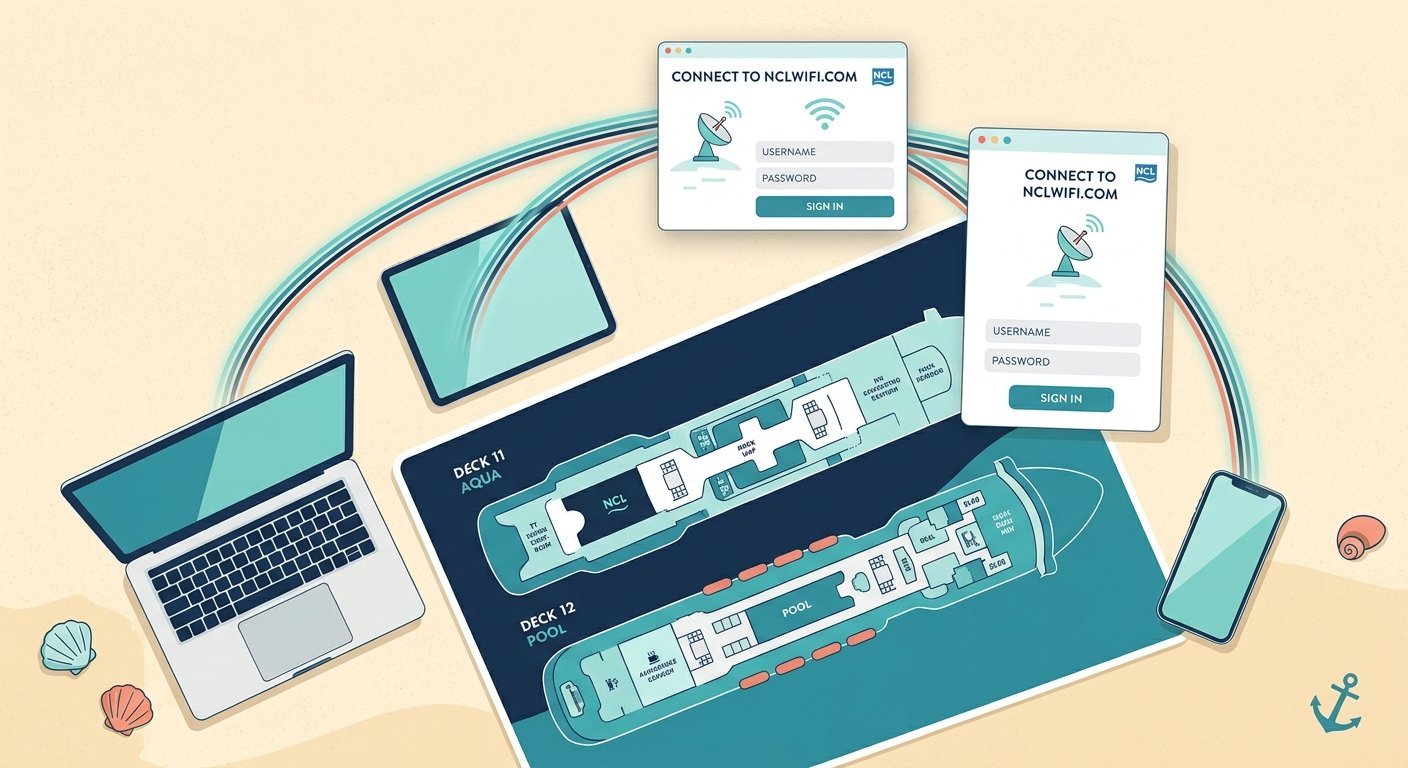
Getting online at sea is one of the first things many cruisers want to sort out. Whether you need to check a work email, send photos home, or keep up with a group chat, the NCLWiFi com system at nclwifi.com is where it all starts. The process is simpler than many guests expect, but a few details trip people up, especially around passes, device limits, and logging out.
This guide walks through how NCLWiFi com onboard internet works, what the current passes cost, how to log in step by step, and how to fix the problems that come up most often.
What NCLWiFi com Is and How It Works
NCLWiFi com is the onboard internet service for Norwegian Cruise Line ships. Guests connect their phone, tablet, or laptop to the ship’s wireless network, and a login page appears in the browser. That page is the NCLWiFi com portal, and it runs through nclwifi.com.
Starlink Now Powers the Fleet
Norwegian has moved its ships to Starlink, the satellite internet service run by SpaceX. Starlink uses low Earth orbit satellites, which typically deliver faster speeds and lower latency than the older geostationary satellite systems many ships used before. Speeds still vary depending on where the ship is sailing and how many guests are online at the same time, so evening peaks can feel slower than mid-morning on a sea day.
Two Ways to Pay
Most guests will choose between two unlimited passes. Some sailings and bookings also include a small allotment of complimentary minutes, but the amount depends on your booking, so check your reservation details before you sail. If you run out, you can buy a package from the portal or through the NCLWiFi com app.
Choosing Between the Voyage and Streaming Passes
At the time of writing, NCLWiFi com lists two unlimited passes at $29.99 and $39.99 per device per day. Prices can change based on the ship and sail length, so confirm the current figures before you buy.
Voyage Wi-Fi Pass
The Voyage pass covers web browsing, email, and messaging. It also handles social media apps and photo uploads. It does not support video or audio streaming, so it is a good fit for guests who mainly want to stay in touch and look things up.
Streaming Voyage Wi-Fi Pass
The Streaming pass includes everything in the Voyage pass, plus audio and video streaming through your favorite app and VPN access. If you plan to watch shows in your cabin, take video calls, or connect to a work network through a VPN, this is the pass you need.
Which One Makes Sense for You
A simple rule helps here. If your needs are messages, maps, and the occasional photo, the Voyage pass is usually enough. If you plan to stream, join video meetings, or use a VPN for work, pay the extra $10 per day for the Streaming pass.
Example: A couple sailing for seven days who mostly message family and look at port information could spend around $210 on two Voyage passes. A solo traveler who wants Netflix and video calls for the same week would pay about $280 for one Streaming pass.
How to Connect and Log In to NCLWiFi com
Logging in is quick once you know the sequence. Follow these steps the first time you go online.
- Turn on Wi-Fi on your device and make sure cellular data is off if you want to avoid roaming charges.
- Open your Wi-Fi settings and select the ship’s network. The name typically includes the ship’s name.
- Open a web browser. The NCLWiFi com login page should appear automatically.
- If it does not appear, type nclwifi.com into the address bar.
- Sign in with the details tied to your booking, then choose the package you want.
- Confirm the purchase and wait for the page to show that your device is connected.
Connecting Your First Device
Once your first device is online, the process is the same for each new device you add. Some guests find it helpful to connect their phone first and then move to a laptop, since the phone is usually easiest to get through the login steps.
Using the nclwifi.com Login Page
If the login page does not load, the problem is often the browser rather than the ship. Some browsers block pop-ups or cached pages that interfere with the redirect. Try a different browser or a private window, then load nclwifi.com directly.
Logging Out to Save Your Minutes
If you are using a minute-based plan, log out when you finish a session. The logout button stops the timer so your minutes are not used while your device sits idle in the background. You can reopen the portal at any time by visiting nclwifi com.
Unlimited passes do not require logging out. Still, it is a good habit, because it keeps your session clean and makes it easier to track which device is connected.
Connecting Multiple Devices
Here is where many guests get confused. NCLWiFi com passes are priced per device. That means a Voyage or Streaming pass covers one device, and each additional phone, tablet, or laptop needs its own pass.
Some guests in cruise forums report sharing one login across a family. Because pricing and policies can differ between sailings, check your package details or ask the onboard WiFi desk before you assume a single login covers several devices.
Example: A family of four with two phones and two tablets would need four separate passes to stay online at the same time. Buying one pass and sharing it between devices is unlikely to give everyone full access.
Using the NCL App and VPN Access
The NCLWiFi com app can be a useful tool on board. Cruise Critic reports that the app uses the ship’s Wi-Fi and does not draw from your personal minutes, which can help you check your itinerary, dining times, or daily schedule without using up your package.
VPN access is available with the Streaming pass. If you plan to connect to a work network, talk with your company’s IT department before you sail. Some VPN setups work well at sea, while others may run slowly or fail to connect.
Fixing Common NCLWiFi com Problems
Most connection issues are easy to fix. Work through these steps before calling for help.
The Login Page Will Not Load
Make sure you are connected to the ship’s network and not a nearby cellular connection. Then try typing nclwifi.com directly. If it still fails, clear your browser cache or switch to another browser.
Connected but No Internet Access
This often means the device joined the network but the package has not been activated yet. Check that you completed the purchase and that the pass is active on the right device. Restarting your phone or forgetting the network and reconnecting can also help.
Slow Speeds in the Evening
Speeds often dip when many guests are online at once. Try heavier tasks like video calls or large uploads earlier in the day, when fewer people are connected. Staying close to the ship’s access points, when possible, can also help.
Still Stuck
Visit the onboard WiFi desk. Staff can check your account and help you connect. Cruise guests on forums often recommend going there in person rather than relying on phone calls, since the advice can be inconsistent.
Tips for Getting More From Your NCLWiFi com Package
A few habits can help you get the most value from your package.
- Buy the right pass for your needs. Paying for streaming when you only need messaging wastes money.
- Use airplane mode and Wi-Fi only. This keeps your phone from quietly using cellular data at sea.
- Download content before you sail. Maps, music, and shows downloaded at home use no onboard data.
- Check your device count. Make sure every device you plan to use has a pass.
- Log out on minute plans. This stops your minutes from running while you are not using them.
Common Mistakes to Avoid
Guests tend to run into the same problems again and again. Avoid these.
- Assuming one pass covers the whole family. Passes are per device, so plan for each phone and laptop.
- Waiting until the first sea day to buy. Booking early can help you avoid confusion and lets you test the connection before you need it.
- Leaving cellular data on. Roaming charges can add up quickly, especially in port or near the coast.
- Relying on phone support alone. Onboard help is often easier to access and more accurate for account questions.
- Skipping the VPN check. If you plan to work, confirm your VPN setup before the cruise.
Frequently Asked Questions
Final Thoughts
NCLWiFi com is straightforward once you know the basics. Connect to the ship’s network, sign in at nclwifi.com, pick the pass that fits your needs, and remember that each device needs its own package. If something goes wrong, the onboard WiFi desk is usually the fastest way to get help.
Source Links
- NCL FAQ on wireless devices onboard: https://www.ncl.com/ca/en/faq/can-i-use-my-wireless-device-onboard
- NCL internet packages: https://www.ncl.com/in/en/onboard-packages/internet-packages
- Cruise Critic, Norwegian Cruise Line internet packages and prices: https://www.cruisecritic.com/articles/norwegian-cruise-line-internet-packages-and-prices
- Cruzely, Norwegian cruise internet review: https://www.cruzely.com/norwegian-cruise-internet-review-speed-test-cost-and-more/